
Quick answer
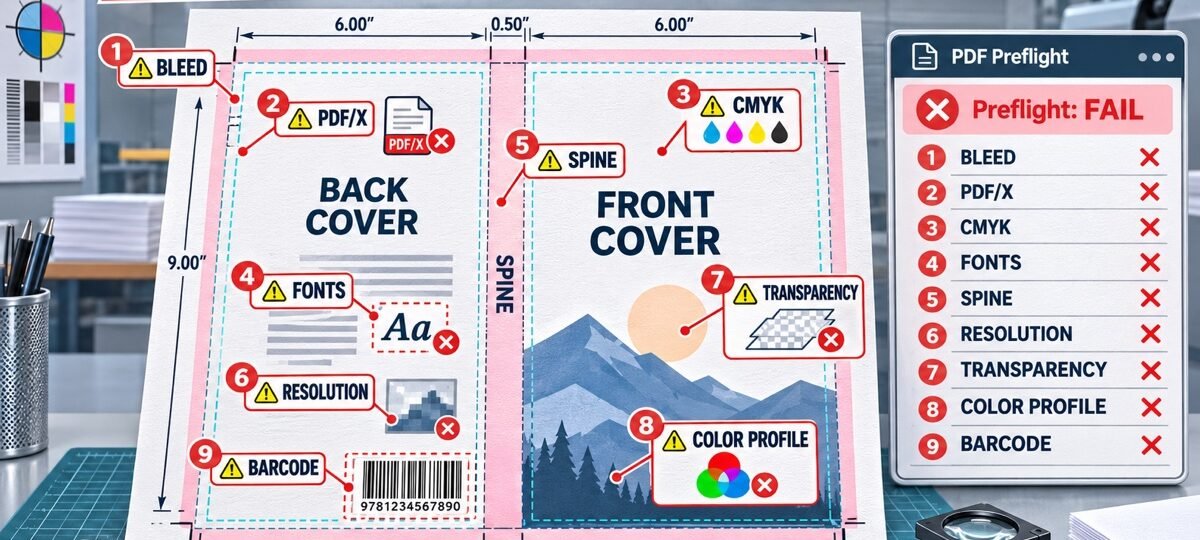
IngramSpark rejections nearly always cite one of nine problems: visible template boxes, wrong file dimensions, colour-space or ICC profile errors, missing bleed, unembedded fonts, low resolution, transparency, spine-text clearance, or barcode issues. Match the message to the fix below, re-export, and resubmit; most files pass on the second attempt.
The reason behind many repeated cover failures fits in three words: template boxes visible. IngramSpark’s processing notes tell you what failed but not always how to repair the source file, so authors loop through upload, wait, bounce, repeat. We build IngramSpark wraps routinely, we have met every problem below in the wild, and this is the decoder we wish someone had written.
Why does IngramSpark reject so many covers?
Because IngramSpark’s automated ingestion checks a cover against print-production specifications. A file that does not conform can fail processing or return revision notes. Budget one revision round into your timeline and the process stops feeling like a fight.
One rule prevents half of all rejections on its own: never build a wrap freehand. IngramSpark’s cover generator emails you a template for your exact ISBN, trim size, page count, paper and binding, with the spine width and barcode already placed. Every fix below assumes you are working on that template.
The 9 rejection messages, decoded
| The review note says | What it actually means | The fix |
|---|---|---|
| 1. Template boxes or guides visible | The template’s coloured guide layer is still in your exported PDF | Hide or delete the guide layer before export |
| 2. File does not match template dimensions | Wrong wrap size, usually a stale template after a page-count or paper change | Regenerate the template for the current spec and rebuild |
| 3. Colour space, spot colour or profile issue | File is RGB, contains spot colours, or carries an ICC profile that can change processing results | Export CMYK to IngramSpark’s PDF/X standard and omit spot colours and ICC profiles |
| 4. Missing or insufficient bleed | Artwork stops at trim instead of extending 0.125 in beyond it | Extend background art to the bleed line on all outside edges |
| 5. Fonts not embedded | The PDF references fonts instead of containing them | Export with fonts embedded, or convert live text to outlines |
| 6. Low-resolution images | Placed art is below the recommended 300 PPI at print size; images below 200 PPI may be rejected | Replace with higher-resolution sources rather than stretching small files |
| 7. Transparency or layer effects | Live transparency the print workflow cannot resolve | Flatten transparency on export |
| 8. Text too close to trim or spine | Type inside the safety margins or drifting off the spine | Pull text 0.25 in inside trim; use 0.0625 in spine safety for spines 0.35 in or wider, and 0.03125 in for narrower spines |
| 9. Barcode problems | Barcode missing, moved, covered, or low contrast | Design around the template’s barcode exactly where it sits |
The rest of this article walks through the three families that cause the most grief.
What does “template boxes visible” actually mean?
The emailed template arrives as a PDF with coloured boxes marking trim, bleed, spine and barcode zones. You are meant to design on top of it, then switch that layer off before exporting. Leave any part of it visible (a pink spine box, a cyan bleed edge, even a sliver peeking past your artwork) and the file bounces, every time, because the press would happily print those boxes onto your cover.
The fifteen-rejection loop happens when the guide layer is merged into the artwork itself, usually because the template was flattened in a photo editor early on. Then no export setting can remove it, and the only fix is rebuilding on a clean template with the guides on their own layer. If your artwork was built at the correct final size, rebuilding is an hour of reassembly, not a redesign.
Why do the dimensions suddenly not match?
Because the wrap is generated from four inputs (trim size, page count, paper, binding), and if any input changed after the template was emailed, the template is stale. The classic sequence: the cover gets finished, then the interior gets one more editing pass, the page count shifts, the spine width changes, and the finished wrap is now wrong by a few millimetres. The file that fails by 2 mm fails as surely as one that fails by 20.
The fix is procedural, not artistic: finalise the interior first, generate the template last, and regenerate it after any interior change at all. If the interior is still moving, that is the thing to lock down; our book formatting service ($95 to $395) exists partly because spine drift keeps torpedoing finished covers. The template maths itself is laid out in our book cover size guide.
What is a PDF/X file, and why does my ICC profile fail?
IngramSpark expects a print-standard CMYK PDF; its current File Creation Guide specifies PDF/X-1a:2001 or PDF/X-3:2002. PDF/X is a locked-down PDF with embedded fonts and predictable print settings. Most design tools have it as an export preset, which is why this problem is usually solved in the export dialog rather than in the artwork.
An ICC profile is a colour-translation tag embedded in a file. IngramSpark advises omitting ICC profiles and spot colours because they can produce unexpected results or turn solid black text grey during processing. Untick the embed option on export. Two related rules while you are in that dialog: the file should be CMYK, and total ink coverage should not exceed 240 percent. Very dark artwork can cross that limit. Once a dark file passes review, dark covers have a second trap at the press itself, covered in why printed covers come out darker than the screen.
The pre-upload export checklist
Run this before every submission and the nine messages above mostly stop existing:
- Template regenerated after the final interior change, and the guide layer hidden.
- Export preset: PDF/X-1a:2001 or PDF/X-3:2002, CMYK, no spot colours or embedded ICC profile.
- Fonts embedded or outlined; transparency flattened.
- All images 300 DPI at final size; bleed extended 0.125 in on outside edges.
- Text 0.25 in inside trim; spine safety matched to the template; barcode zone untouched.
- Open the exported PDF and look at it at full width before uploading. Thirty seconds of looking catches most guide-layer and bleed misses.
If you are on rejection five and losing patience
At some point the honest answer is that wrestling export dialogs is not why you wrote a book. Every DesignDusk paperback and hardback tier ships with the print wrap built on your printer’s current template, exported to spec, with the review round handled if it comes back. The shelves run 1,500+ in-stock designs, each sold once (fantasy and romance are the deepest), and custom covers run $120 to $350 including both KDP and IngramSpark files for wide releases.
FAQ
Every DesignDusk paperback tier (from $59.99) includes an IngramSpark-ready wrap built on your emailed template. 1,500+ designs in stock, each sold once. Start with the fantasy shelf or the romance shelf.
Because its automated processing checks files against print-production standards, and one unresolved issue can fail the whole file each round. The usual culprits are visible template guides, a stale template after a page-count change, colour/profile problems, missing bleed and unembedded fonts. Fix everything on the checklist at once, then resubmit once.
The coloured guide boxes from IngramSpark’s emailed template (trim, bleed, spine and barcode markers) are still present in your exported PDF. Hide or delete the guide layer and re-export. If the guides were flattened into the artwork itself, rebuild on a fresh template with the guide layer kept separate.
A CMYK PDF built on the template from its cover generator: 300 PPI recommended, 0.125 in bleed, fonts embedded, and exported as PDF/X-1a:2001 or PDF/X-3:2002. Omit spot colours and ICC profiles. Most design tools offer the PDF/X formats as export presets.
You can upload revisions without charge until you approve the eproof. IngramSpark’s current user guide states that revisions after eproof approval are subject to a $25 fee, although account promotions or limited waiver periods can change what you actually see. Check the price shown in your account before confirming a post-approval revision.